 Image: Autodesk
Author: VANAS Team
How to Renew Your Autodesk Maya Education Access
Table of Contents
- Why renewing matters
- Before you start: what to prepare
- Renewal routes (student, faculty, institution)
- Step-by-step renewal walkthrough
- Troubleshooting and common issues
- Alternatives if you can't renew
- FAQs
- Key takeaways
Why renewing matters
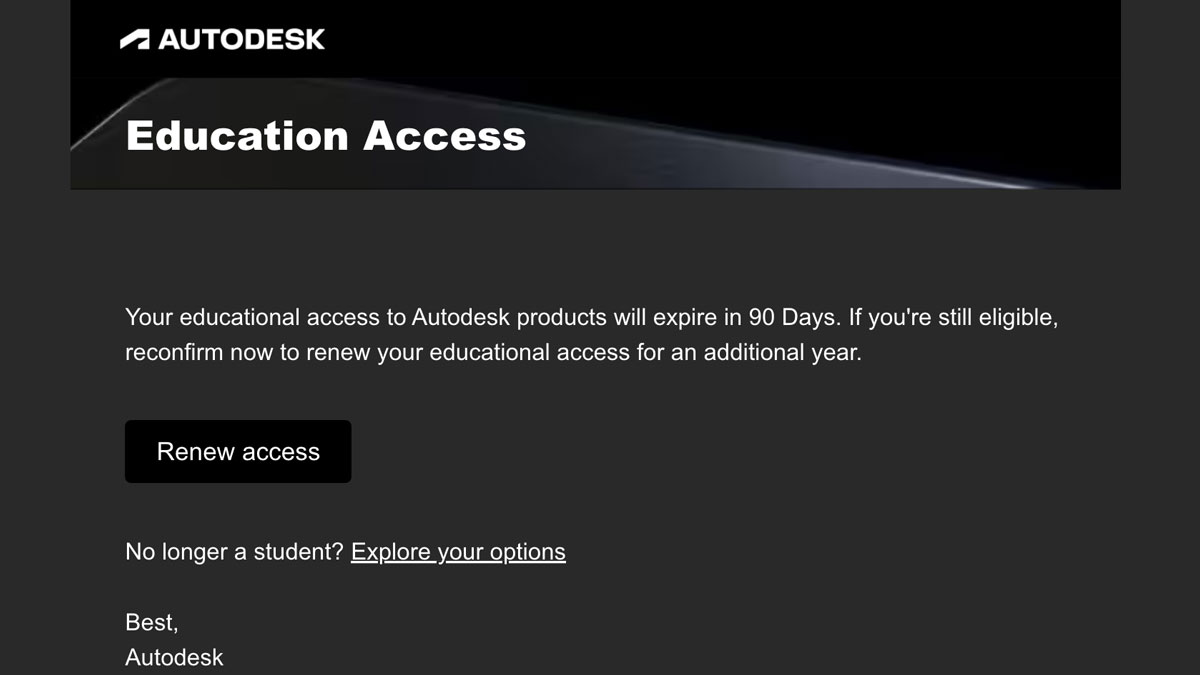
Autodesk provides free education access to Maya and other professional tools for students and educators. That access typically expires after a year and requires periodic renewal or re-verification of your academic status. Renewing promptly keeps your project files editable, ensures you receive updates and security patches, and avoids interruptions to coursework or portfolio work.
Before you start: what to prepare
Make sure you have the following ready before attempting renewal — this will save time and reduce verification hiccups:
- A working Autodesk account (email and password)
- Access to your school or university email (recommended)
- Proof of enrollment or employment (student ID, acceptance letter, transcript, tuition receipt)
- Current versions of your Maya project files backed up (external drive or cloud)
- A clear photo or PDF of your ID and school documentation, if required for manual verification
Pro tip: export and save a copy of any custom plugins, scripts, and license-related project settings before the license expires.
Renewal routes (student, faculty, institution)
There are three common renewal paths — choose the one that fits your situation:
- School email verification: The fastest route is using an academic email address (e.g., .edu, .ac, or your institution’s domain). Autodesk often accepts this as automatic proof.
- Document verification (SheerID or similar): If you don’t have a school email, Autodesk may ask you to upload proof of enrollment or employment through their verification partner. This usually takes 24–72 hours.
- Institution-managed licenses: If your school provides Autodesk access through an institutional site license or campus agreement, renewals are handled by your IT or media department — contact them first.
If you're faculty or staff, the institution-managed route is normally quickest — get in touch with your campus IT or learning technologies department.
Step-by-step renewal walkthrough
Follow these steps to renew an individual Autodesk Education license for Maya.
- Sign in to your Autodesk Account
- Go to https://www.autodesk.com and click Sign In.
- Use the same email you used previously for your education plan. If you don’t remember, search your inbox for messages from Autodesk for the account email.
- Open the Education section
- From the Autodesk homepage or your account dashboard, navigate to the "Education Community" or "Get Products" section and choose the Education plan.
- Start the verification/renewal flow
- Click Renew or Get Education Access. Autodesk will ask whether you are a student or educator. Choose the correct role.
- Choose your verification method
- If you have an academic email, follow the prompts to verify it (Autodesk may send a confirmation link to that address).
- If you don’t have a school email, select the document upload option. You’ll be asked to submit proof like a photo of your student ID, a current transcript, or an enrollment letter.
- Complete the submission
- Upload documents and fill in requested fields. Double-check that names and dates are readable and match the name on your Autodesk account.
- Wait for confirmation
- Automated email confirmation may be instant with school emails. Manual document verification can take 1–3 business days. Watch your inbox (and spam folder).
- Download and install (if needed)
- After renewal is approved, go to your Autodesk account "All Products and Services" page. Click Maya and download the installer for your OS.
- Reactivate any currently installed Maya
- If Maya was already installed, open the app and sign in with your Autodesk account to refresh the license. If the license was removed from the machine, install the new build and sign in.
Troubleshooting and common issues
- Expired school email: If you lost access to a school email, use document verification instead. Keep a copy of your student documents for this.
- Repeated rejection of documents: Ensure photos are clear, full-page, and show institution name, your name, and a valid date. Convert images to PDF if upload fails.
- Account mismatch: If your Autodesk account email doesn’t match the name on your documentation, change the account email to the one on your documents, or contact Autodesk support.
- Institutional licenses: If your campus uses a site license, Autodesk may show no personal license available — check with campus IT for installation and activation steps.
- Waiting time: Verification can be delayed during long academic breaks; allow up to 5 business days and contact Autodesk support if it’s longer.
If all else fails, contact Autodesk Education Support. Provide your Autodesk account email, proof of enrollment, and a short description of the problem.
Alternatives if you can't renew
- Autodesk offers timed trials of Maya that can get you temporary access.
- Autodesk also provides free tools and learning resources. Consider using Maya LT or other lighter tools if you need only modeling or game-ready workflows.
- If you’ve graduated and need professional access, evaluate Autodesk subscription plans or Autodesk Maya Indie (if you meet revenue qualifications).
Frequently Asked Questions
Q: How long does verification take?
A: With a recognized academic email, verification is usually instant. Document verification typically takes 24–72 hours but may sometimes take longer.
Q: Will I lose my project files if my education license expires?
A: Your files remain on disk, but you won’t be able to open them in a licensed Maya until you renew or use an alternate licensed copy. Export important scenes to neutral formats (Alembic, FBX) before expiry if possible.
Q: Can I renew after I graduate?
A: Autodesk education access is only for current students and educators. After graduating, you must switch to a commercial subscription or an eligible alternative (Maya Indie if eligible).
Q: Who do I contact at my school?
A: Contact campus IT, the digital media lab, or the faculty member who manages software licenses. They can tell you whether the campus provides a site license or if you need to renew individually.
Key takeaways
- Start renewal early — at least two weeks before expiry.
- Keep proof of enrollment handy and maintain access to your academic email when possible.
- Backup project files and custom assets before attempting renewal.
- If your school manages licenses, coordinate with campus IT for fastest resolution.
VANAS Online helps students get industry-ready with hands-on courses in 3D animation and visual effects. Visit https://www.vanas.ca to learn more.